
このCookBookでは、BloomMaker のマークダウンエレメントに、CSS エディタを使用して任意のデザインを追加する方法についてご紹介いたします。
完成サンプル
以下の完成サンプルをダウンロードしてご活用ください。
このサンプルは、2024 Autumn 版以降でインポートできます。
im_cookbook_250064_im_bloommaker-dataダウンロード
BloomMaker のインポート機能を利用してインポートしてください。
前提条件
この CookBook の手順をお手元の環境で実施する場合は、BloomMaker で以下のコンテンツを作成して使用してください。
- デザイナのタイプ:デベロップモード
- テンプレート:使用しない
- コンテンツ種別:imds
手順
1. マークダウンエレメントを配置する
コンテンツのデザイン編集画面を開きます。
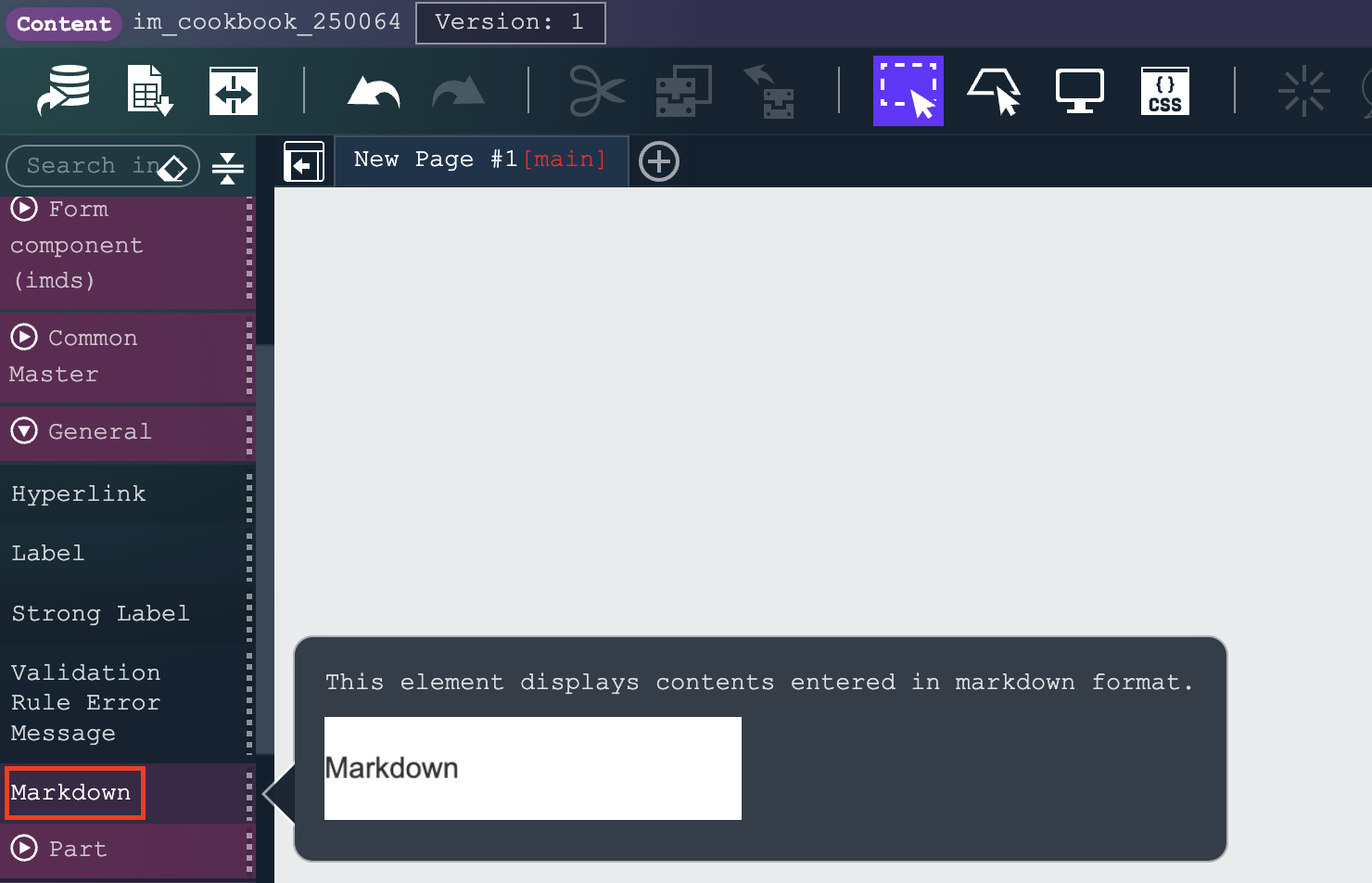
エレメントパレットの「汎用」カテゴリから「マークダウン」エレメントを選択して、コンテナに配置します。
エレメント固有プロパティから textContent の「固定値」を選択します。
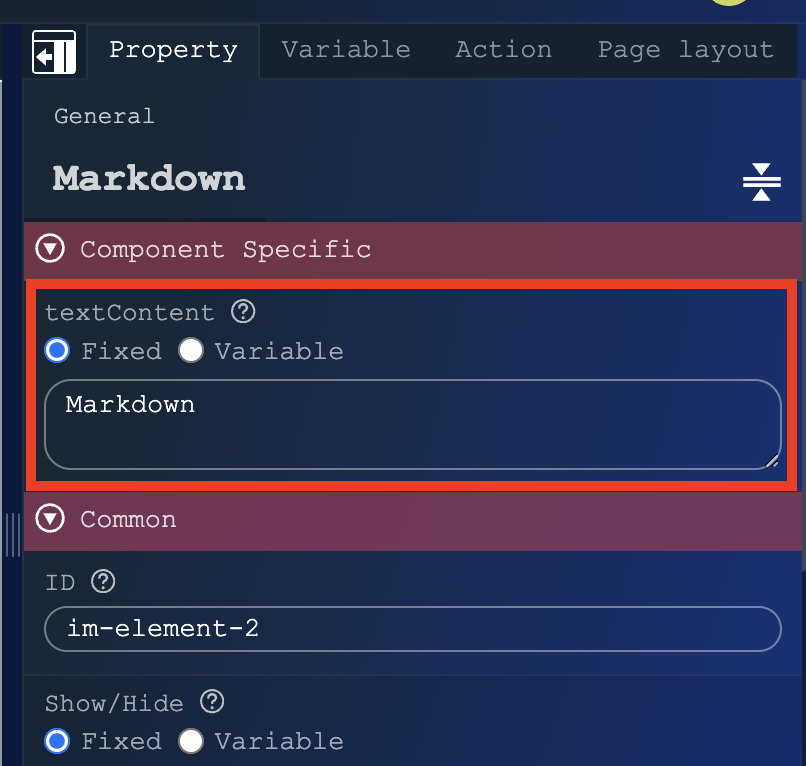
以下の内容を貼り付けます。
# Adding Custom Styles to Markdown
Header Design Examples
Header Level 3
Header Level 4
Header Level 5
Header Level 6
Table Design Example
| First Header | Second Header |
|---|---|
| Content Cell | Content Cell |
| Content Cell | Content Cell |
| Content Cell | Content Cell |
Link Design Example
[https://www.intra-mart.jp/\](https://www.intra-mart.jp/)
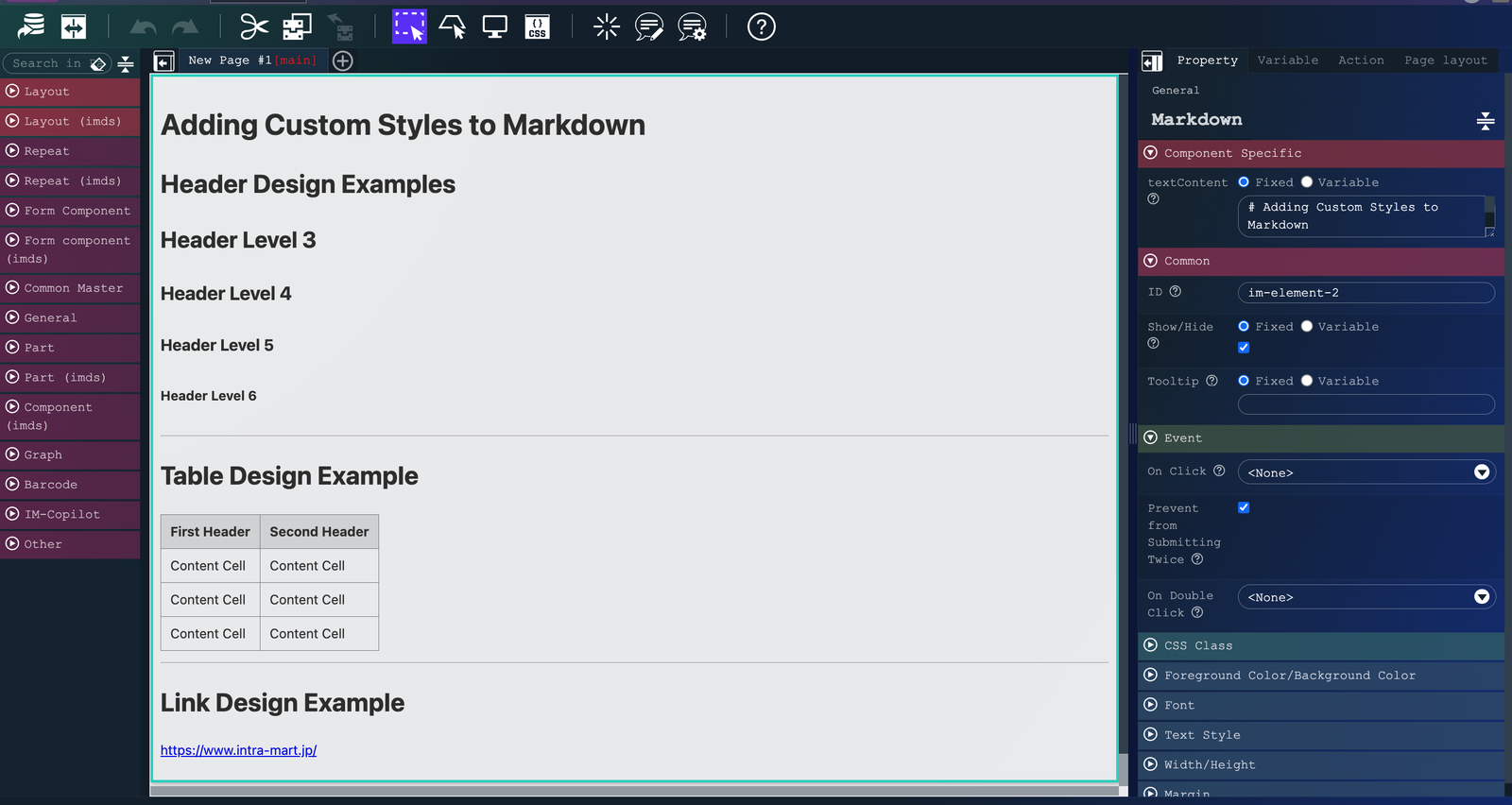
マークダウンエレメントに各要素が表示されていることを確認してください。
2. CSS を設定する
「CSS編集」アイコンをクリックしてください。

以下の CSS を張り付けて、「決定」を押してください。
.im-hichee-im-markdown {
  h1, h2, h3, h4, h5, h6 {
    margin-top: 24px;
    margin-bottom: 16px;
    font-weight: 600;
    line-height: 1.25;
  }

  h1 {
    padding: 0.15em 0.5em;
    border-bottom: 1px solid #eaecef;
    color: #fff;
    background: linear-gradient(#3f3f3f 0%, #323232 70%, #2b2b2b 100%);
    text-shadow: -1px -1px 0px #000000;
    text-align: left;
    overflow: hidden;
  }

  h2 {
    padding: 4px 10px;
    background: #f4f4f4;
    border-left: solid 5px #888;
    border-bottom: solid 1px #d7d7d7;
  }

  h3 {
    padding: 4px 8px;
    background: #dfdfdf;
  }

  h4 {
    border-bottom: #2b4783 solid 1px;
  }

  h5 {
    font-size: 12px;
    border-bottom: 1px dotted #d5d5d5;
  }

  h6 {
    font-size: 12px;
  }

  table {
    border-spacing: 0;
    border-collapse: collapse;
    overflow: auto;
  }

  td,
  th {
    padding: 0;
  }

  table th {
    font-weight: 600;
    background-color: #efefef;
  }

  table th,
  table td {
    padding: 6px 13px;
    border: 1px solid #dfe2e5;
  }

  table tr {
    background-color: #fff;
    border-top: 1px solid #c6cbd1;
  }

  table tr:nth-child(2n) {
    background-color: #f6f8fa;
  }

  a {
    color: #1080d5;
  }

  hr {
    overflow: hidden;
    background: transparent;
    height: 0.25em;
    padding: 0;
    margin: 8px 0;
    background-color: #e1e4e8;
    border: 0;
  }
}
マークダウンエメレント内の要素のデザインが変わっていることを確認してください。
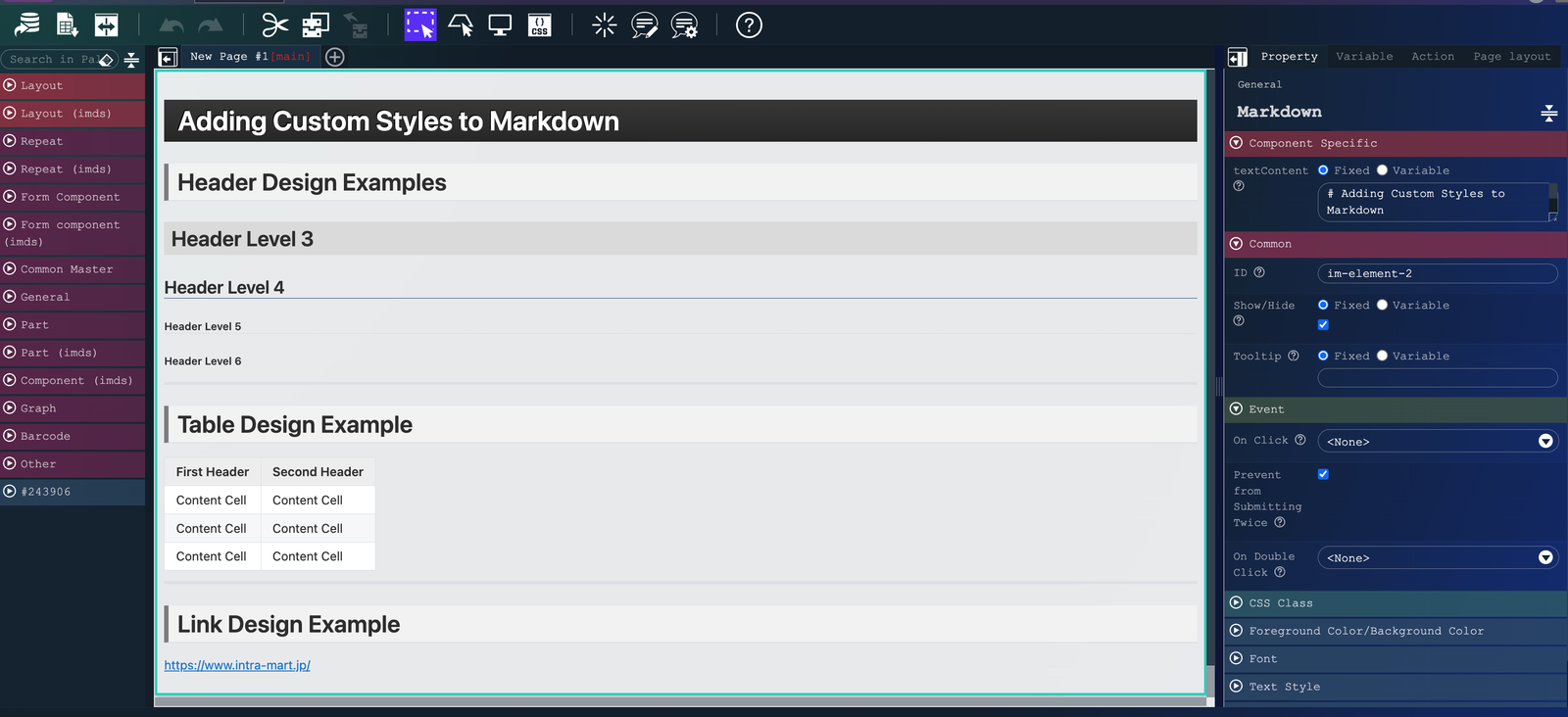
im-hichee-im-markdown クラス配下の html タグに CSS を指定して、任意のデザインをマークダウンエレメントに追加する事が可能です。
まとめ
このCookBookでは、マークダウンエレメントに任意のデザインを追加する方法について説明しました。
うまくいかない場合は、インポートファイルに含まれているコンテンツを参考にしてみてください。